
Animation Import Export
This guide will help you import animations in Maya and export them for League modding.
| Name | Description |
|---|---|
| RitoBin | Converts .bin files to .py and back using ritobin_cli. |
| Autodesk Maya | Industry-standard 3D software, used for rigging and UV mapping. Perfect for League Modding. |
Before you begin animation stuff
Note: I strongly suggest you first get familiar with how to import .skn and .skl.
Importing
Extracting what you need
Firstly, you want to extract your desired Champion folder with Flint (for this post, I will be working with Blitzcrank).
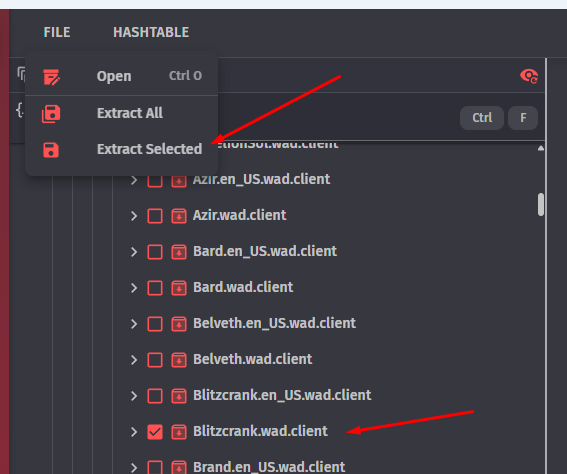
Once extracted, navigate to the location where you extracted it and find the animation folder (Should be something like assets\characters\character\skins\base\animations).
Importing the animation in Maya
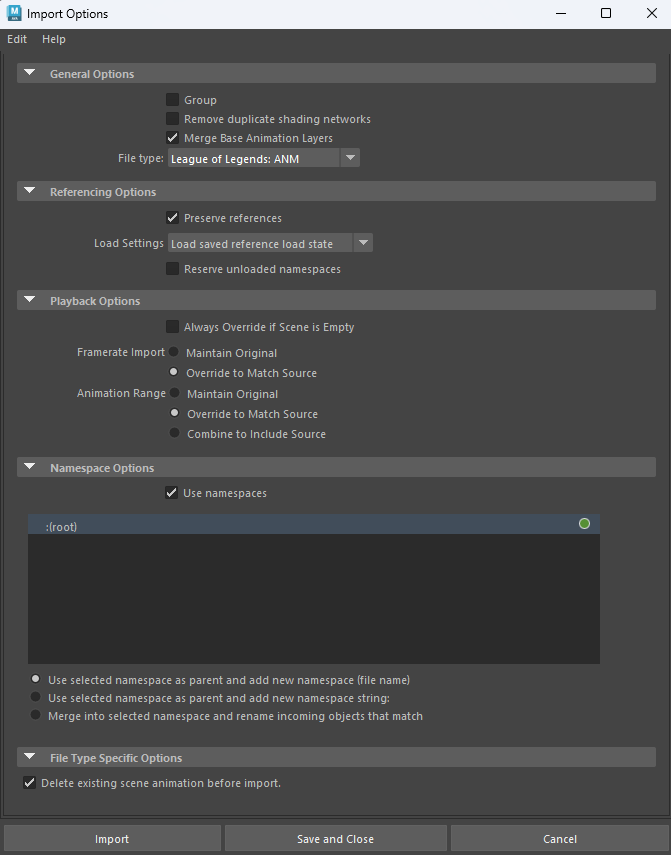
Make sure these are your import options:
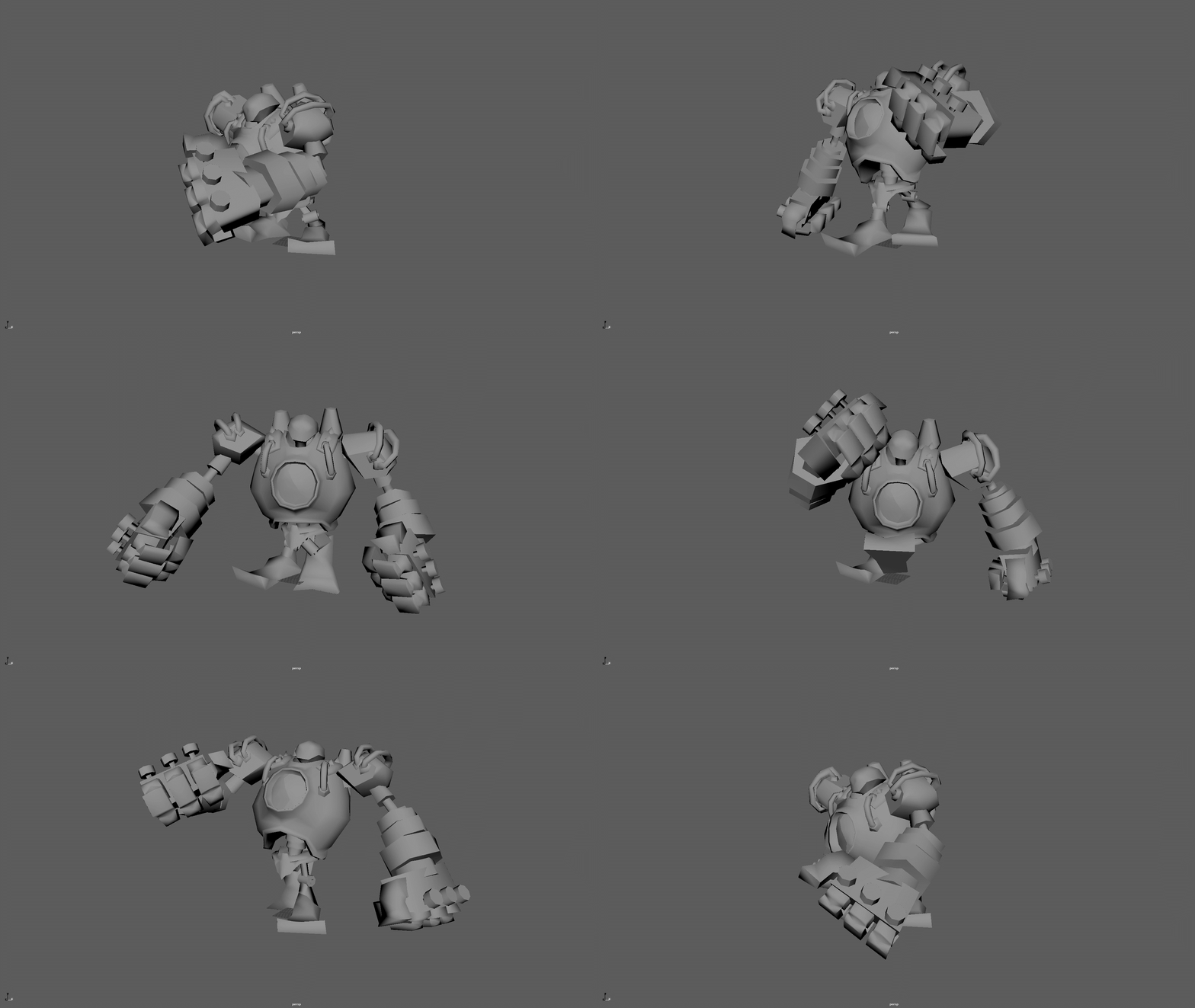
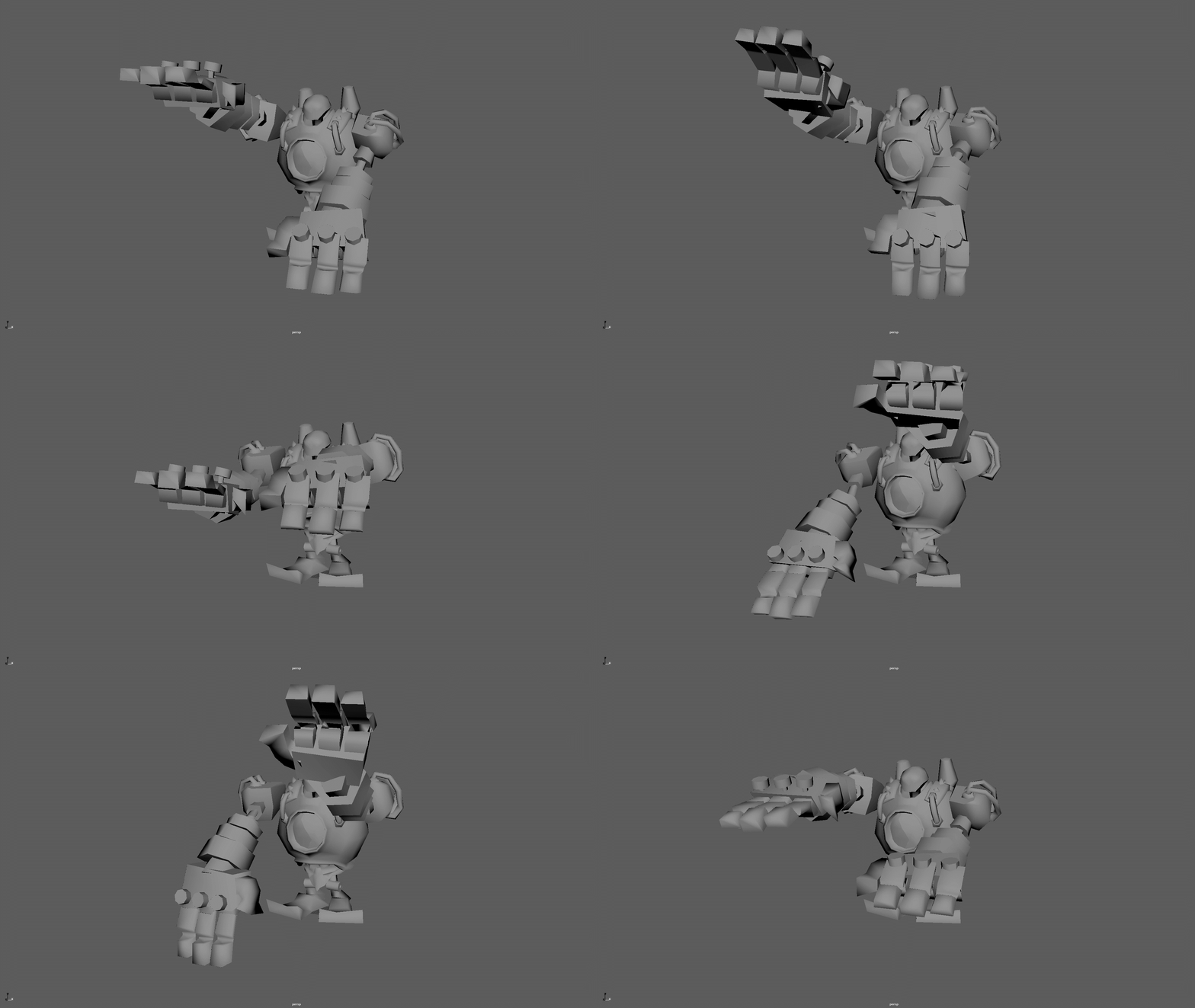
With the model in the scene (import the .skn and .skl first), simply drag and drop the animation you want (should be .anm) to see in the viewport, and VOILA, you have your funny Blitzcrank walk in the Maya scene.
Exporting
Setting up the timeline
Now, if you want to Export an animation, you will want to specify the frames you want to export. To do that, select the range you want to export in the timeline.
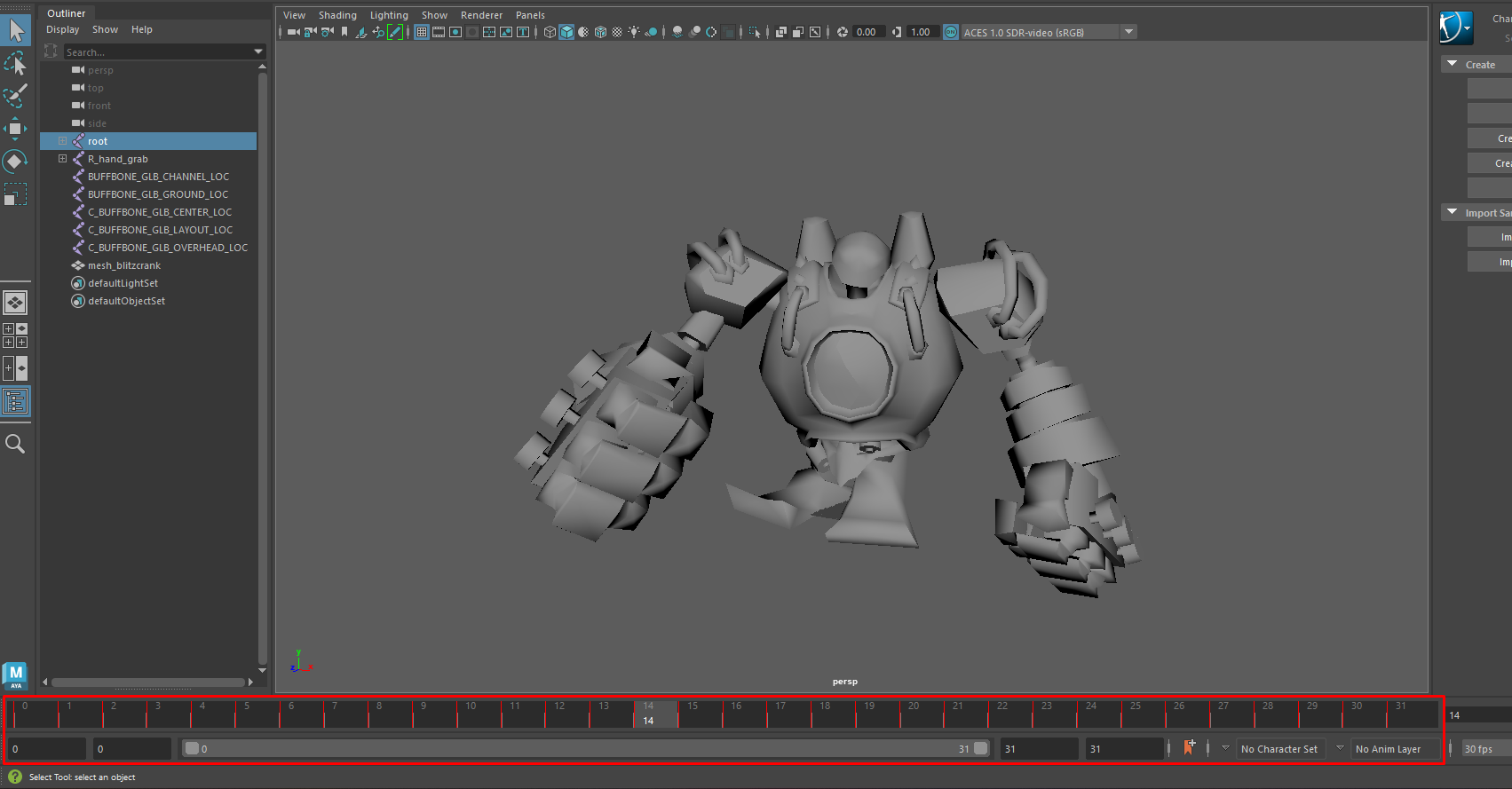
Here, I made a small animation to demonstrate. The animation lasts for 20 frames, but the frames are between frame 40 and 60. To select the frames you want to export, make sure the two numbers are the same in both boxes, so I type 40/40 and 60/60 (this will change depending on YOUR animation length).
This is not what you want:

This is what you want:

The bar needs to be "full"
You also need to leave one empty frame at the start! So in my case, instead of 40/40, I would have 39/39.
Exporting the animation
Make sure you export in 30 fps!
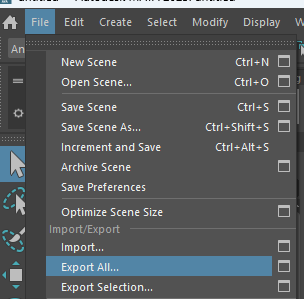
To export, select File > Export All.
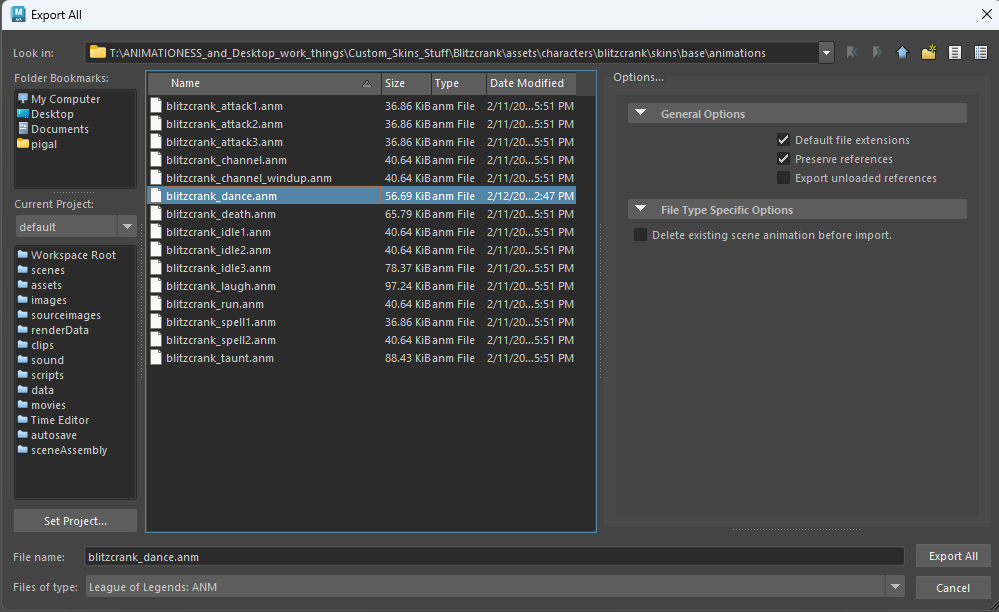
Then, select the animation you want to replace and make sure you export as .anm.
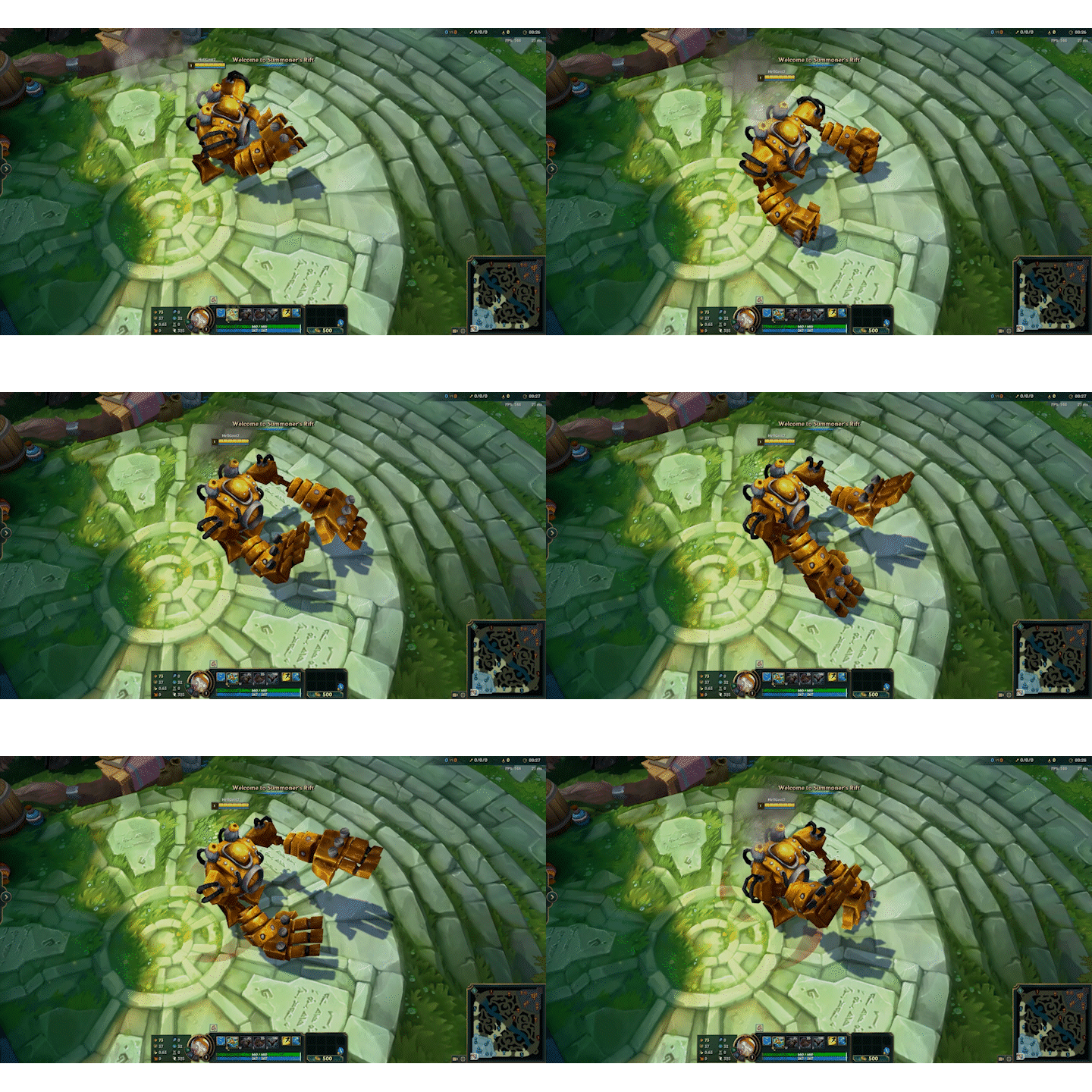
Annnnnd well done! You now know how to import and export animations for League models!
— Guide by Goat