
LoL Maya Plugin
To start working with League models in Maya, you'll need the LoL-Maya plugin by Tarngaina.
Installing the LoL-Maya Plugin
To start working with League models in Maya, you'll need the LoL-Maya plugin by Tarngaina.
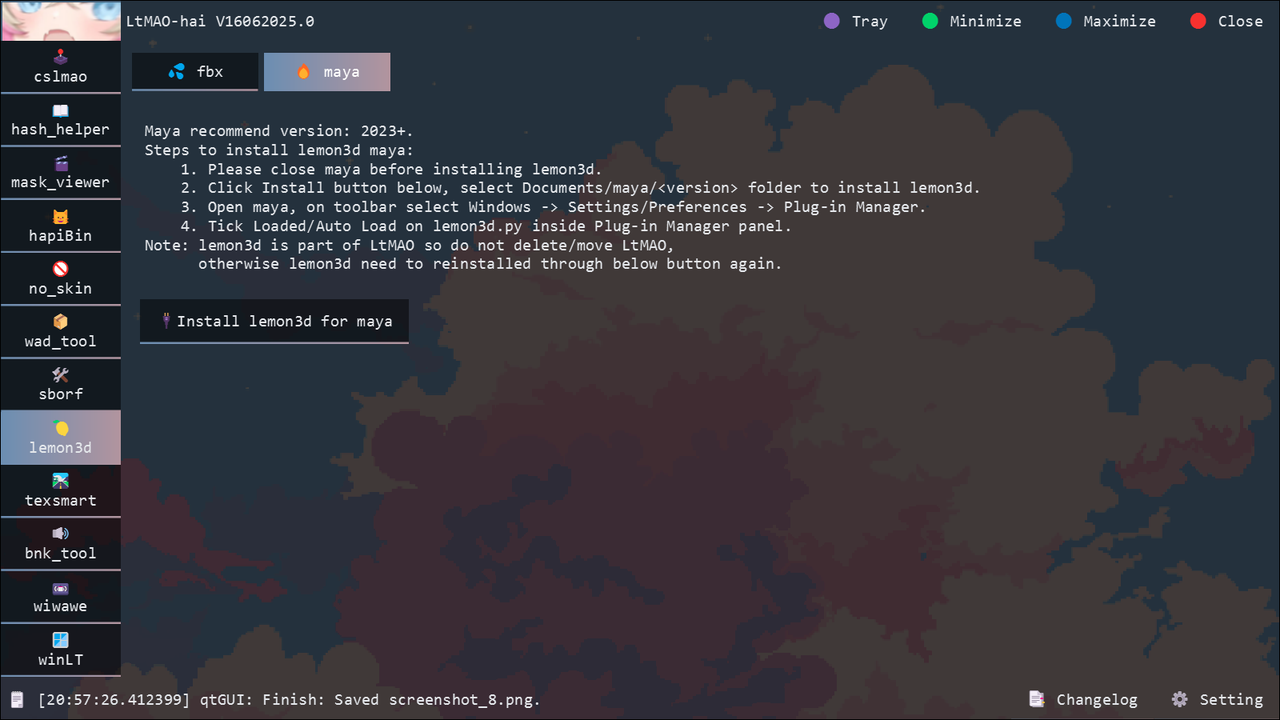
LoL-Maya Plugin⚠️ For newer versions of Maya, you can also use Lemon 3D along with LtMAO (also by Tarngaina) to ensure compatibility.
Download the latest release by Tarngaina.
LtMAOCompatibility tool for newer Maya versions.
Download the Plugin
Download LoL-Maya (Latest Version) Make sure you are using the most recent release.
Install the Plugin
- Extract the contents of the
.zipfile. - Copy all plugin files to your Maya directory.
Place the following folders into:
Documents\maya\2023\plug-insprefsscripts
Enable the Plugin in Maya
-
Open Maya
-
Go to: Windows → Settings/Preferences → Plug-in Manager
-
Locate lol_maya in the list
-
Enable both:
- Loaded
- Auto Load
-
Click Close, then restart Maya
If successful, you will see LoLMaya and LoLMaya_MAPGEO tabs in Maya’s main toolbar.
Troubleshooting
Plugin not appearing in Plug-in Manager
Causes:
- Files not in correct folder
- Wrong Maya version folder
Fix:
- Verify files are in
Documents\maya\[YOUR_VERSION]\ - Ensure all three folders (
plug-ins,prefs,scripts) are present - Restart Maya completely
Tabs not appearing after loading
Causes:
- Plugin loaded but UI not refreshed
- Maya needs restart
Fix:
- Close Maya completely
- Reopen Maya
- Check Plug-in Manager again
- Ensure Loaded and Auto Load are both enabled
Newer Maya version issues
For Maya 2024+, the standard plugin may have compatibility issues.
Solution: Use Lemon 3D + LtMAO together:
LtMAODownload for newer Maya compatibility.
Credits
Tool by: Tarngaina