
Animation Retargeting
Reuse an existing animation and port it onto another skeleton for League skin modding.
In my case, I will be putting Star Guardian Ahri's dance into Ornn.
Definitions:
- Main SKL: Ahri (Source)
- Targeted SKL: Ornn (Destination)
Video Guide
Getting Main SKL in Maya
You will first want to import the Main SKL into the scene with the desired animation (in my case, the dance).
- Import the
.sknby going to File > Import, changing the "Files of type" to "League of Legends : SKN" and importing your skn.
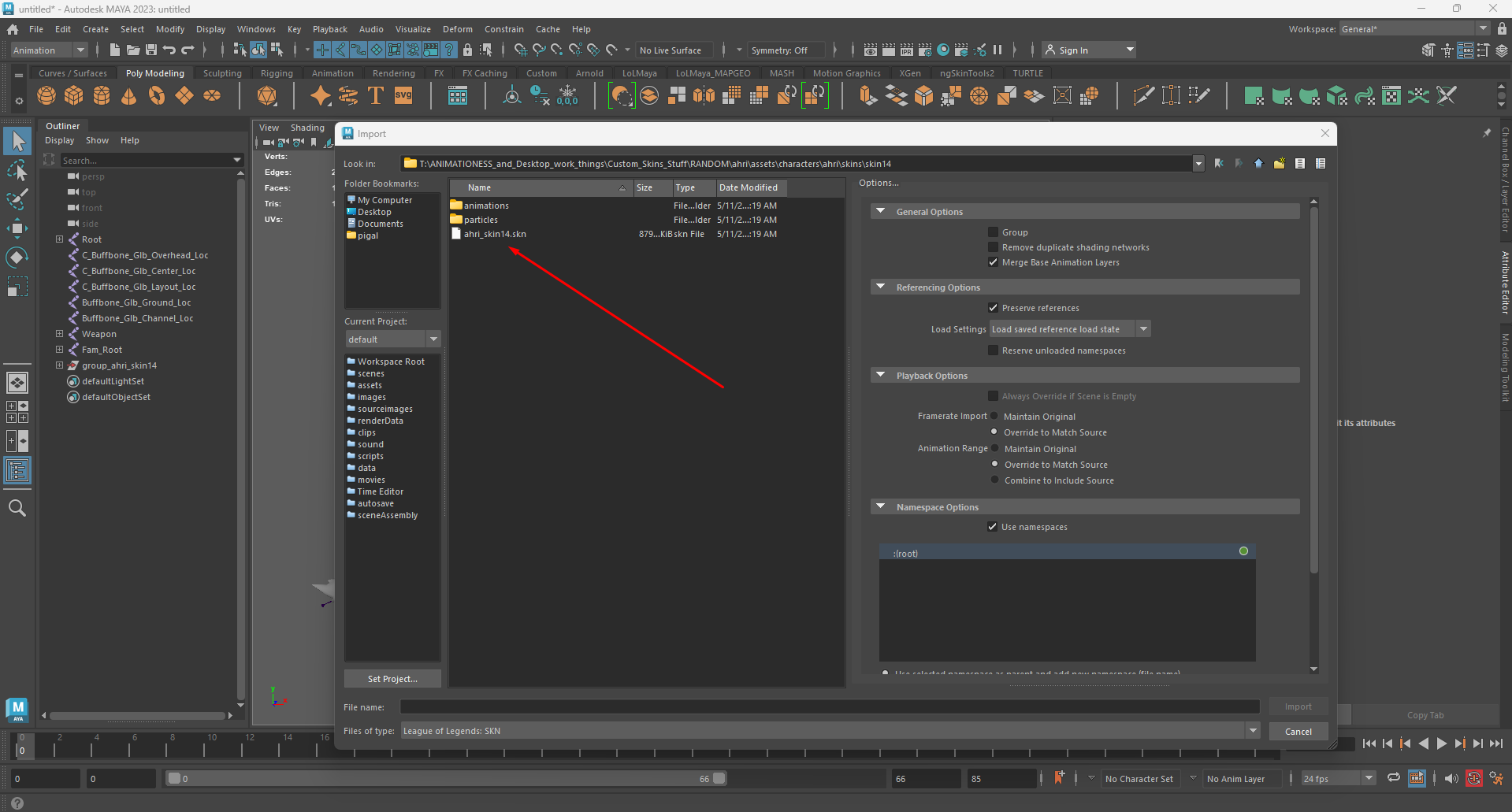
-
You will then want to import the desired animation. To do so, go to File > Import, changing the "Files of type" to "League of Legends : ANM" then looking for the desired animation.
In the import settings, make sure to select:
- Framerate Import: Override to Match Source
- Animation Range: Override to Match Source
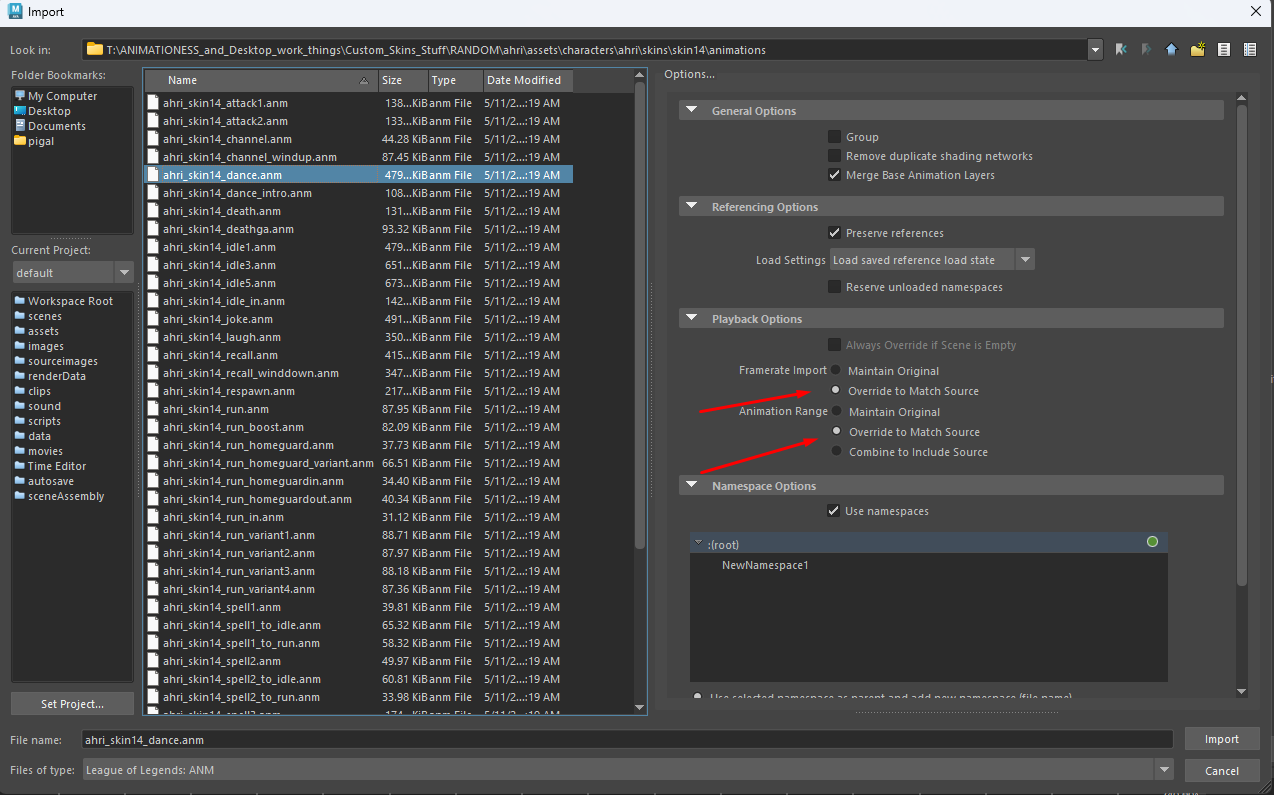
-
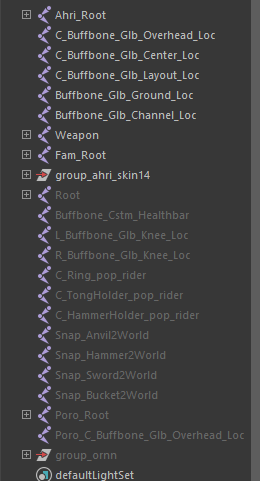
Next select the "Root" bone and add a prefix. Go to Modify > Prefix Hierarchy Names.
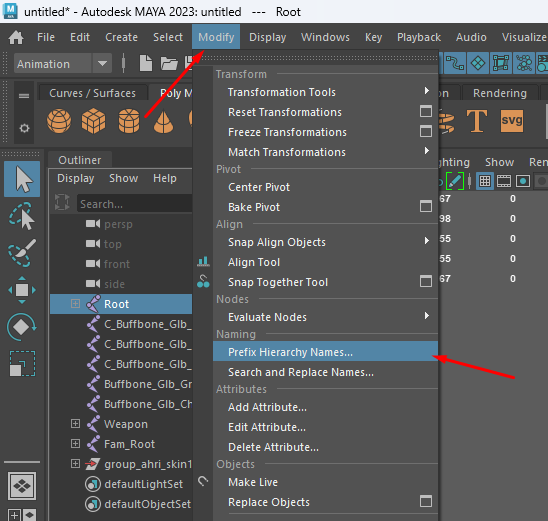
- And put anything you want there (I'll put
Ahri_because it looks clean).
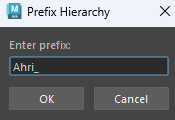
Getting Targeted SKL in Maya
Now that the Main SKL is all cool and good, let's get the Targeted SKL in Maya as well. To do so, do the same thing as before: File > Import, and find the desired skn to import.
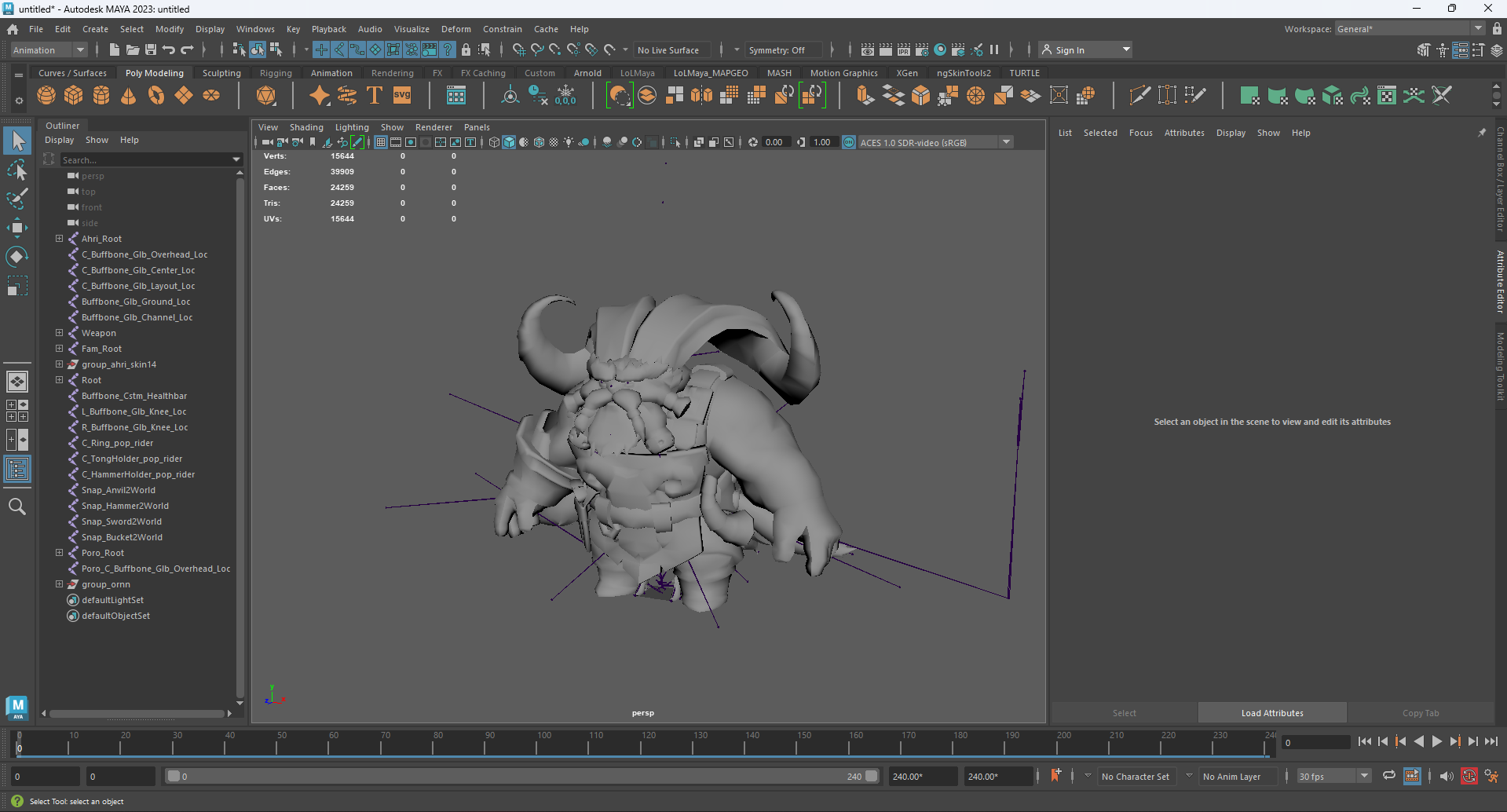
Now that we have both skeletons in the scene, let's begin the Retargeting!
Preparation
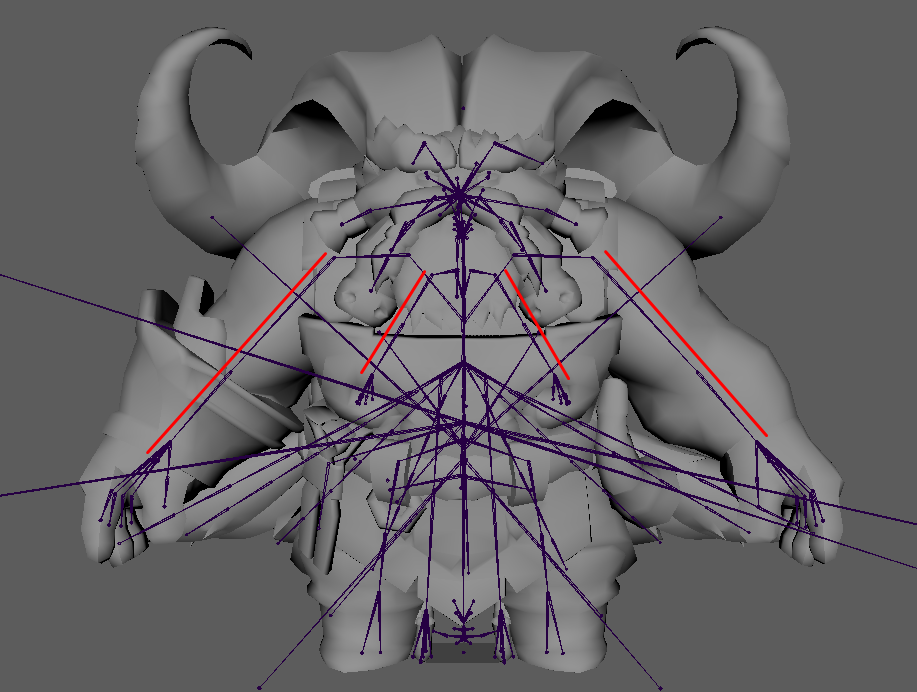
First, make sure that the arms are parallel to each other, this is necessary for the Retargeting to work. The Targeted SKL should have the same arm angle as the Main SKL, so if the Main SKL's arms are in A-Pose, put the Targeted SKL in A-Pose as well. You would do the same for a T-Pose.
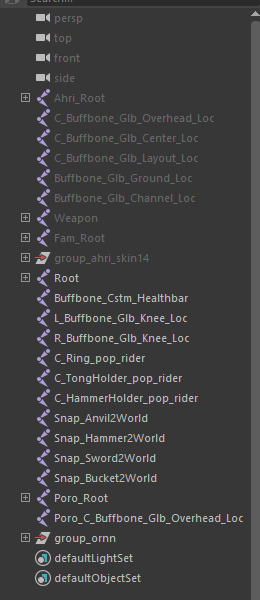
Let's hide the mesh and skeleton from the Main SKL first by going into the outliner, selecting the mesh and skeleton, then pressing H. They should now be grayed out.
Character Definition
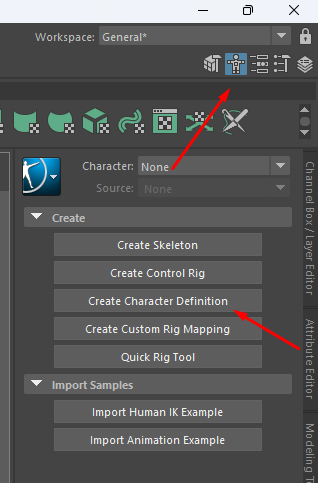
- Click the little t-posing dude in the top right corner of Maya, and then "Create Character Definition".
- You will now see a big scary man appear! Click that little bone icon right above the Viewport, it will allow you to see the bones through the mesh.
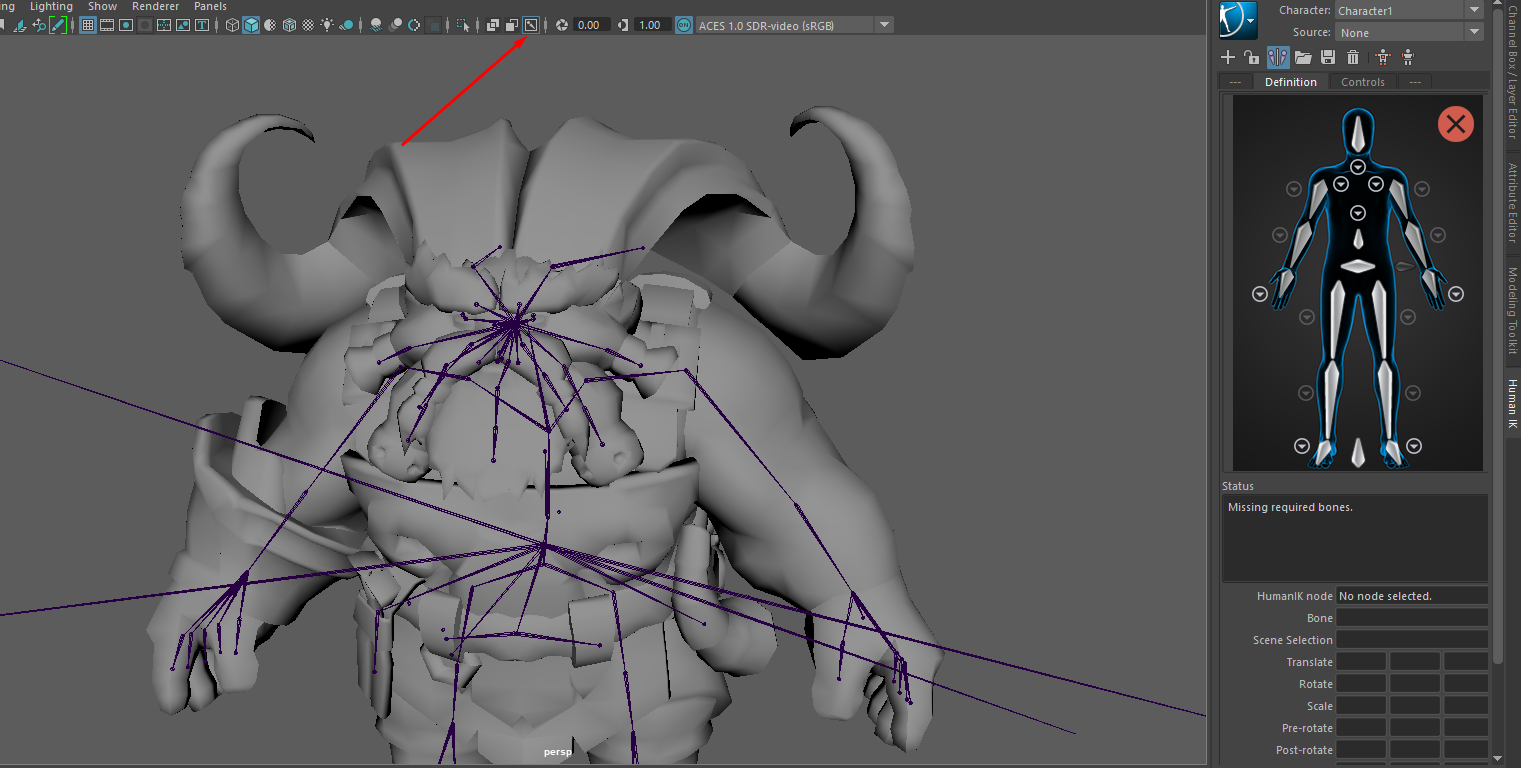
-
It is now pretty straightforward, you double click on the arm of the scary man, then click on the bone corresponding on the Targeted SKL skeleton.
Example: The left shoulder with the left shoulder, etc.
When double clicking the scary man's shoulder, you will notice that the rest of the bones get grayed out. Like so:
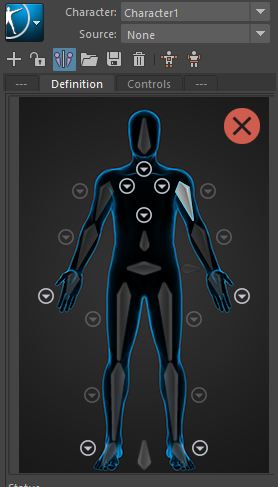
This means that you have selected the bone successfully.
- Now, I would click the left shoulder of the Targeted SKL, since that is the bone I selected on the scary man.
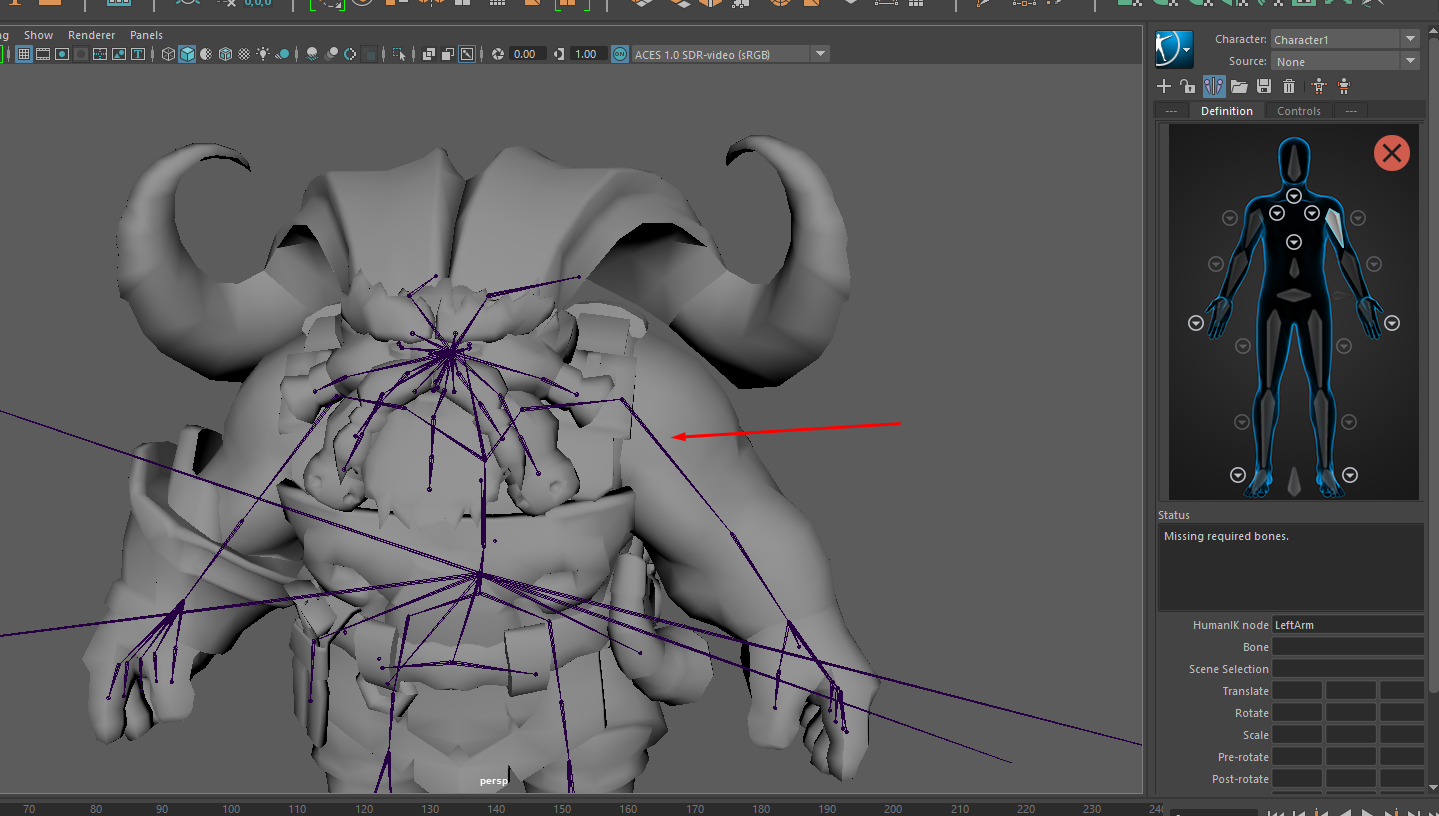
Both left arm and right arm should now turn green on the scary man, this means that the bone was assigned successfully.
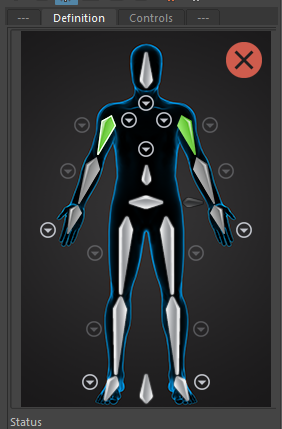
-
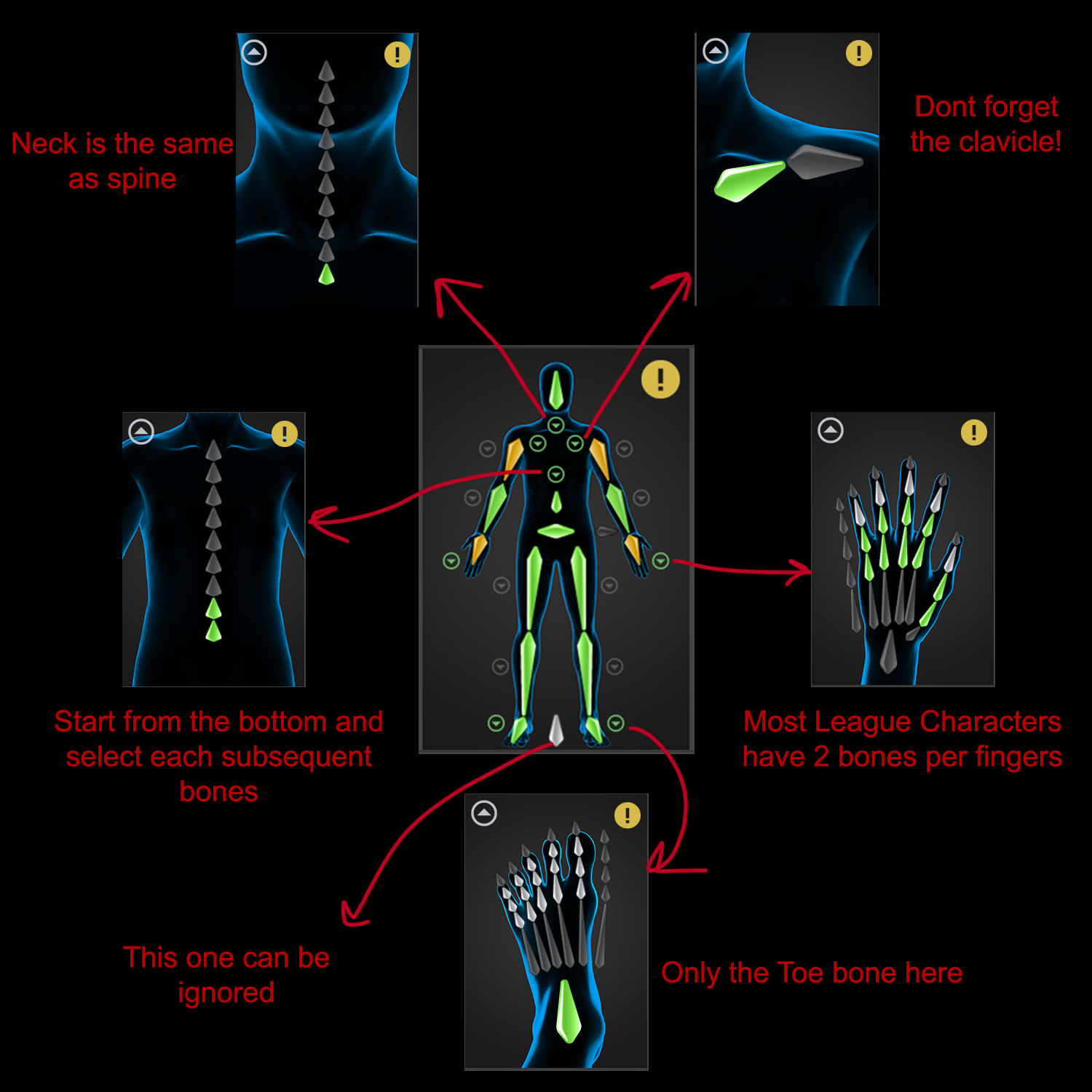
You will also notice some arrows pointing down on the scary man. Those are there to select the Clavicles, Fingers, Toes, Spine and Neck. It is important to fill them out if you want the animation retargeting to be better!
In the end, it should look like something like this:
- Once that's done, let's do the same for the Main SKL. Start by hiding the Targeted SKL bones and mesh and unhiding the Main SKL by selecting them and pressing H, like before.
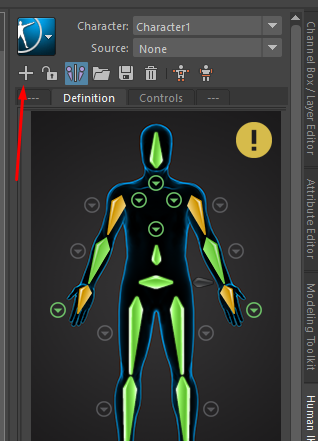
- Now, above the scary man, you will find a little "+" icon, click it. This will create a new character definition.
-
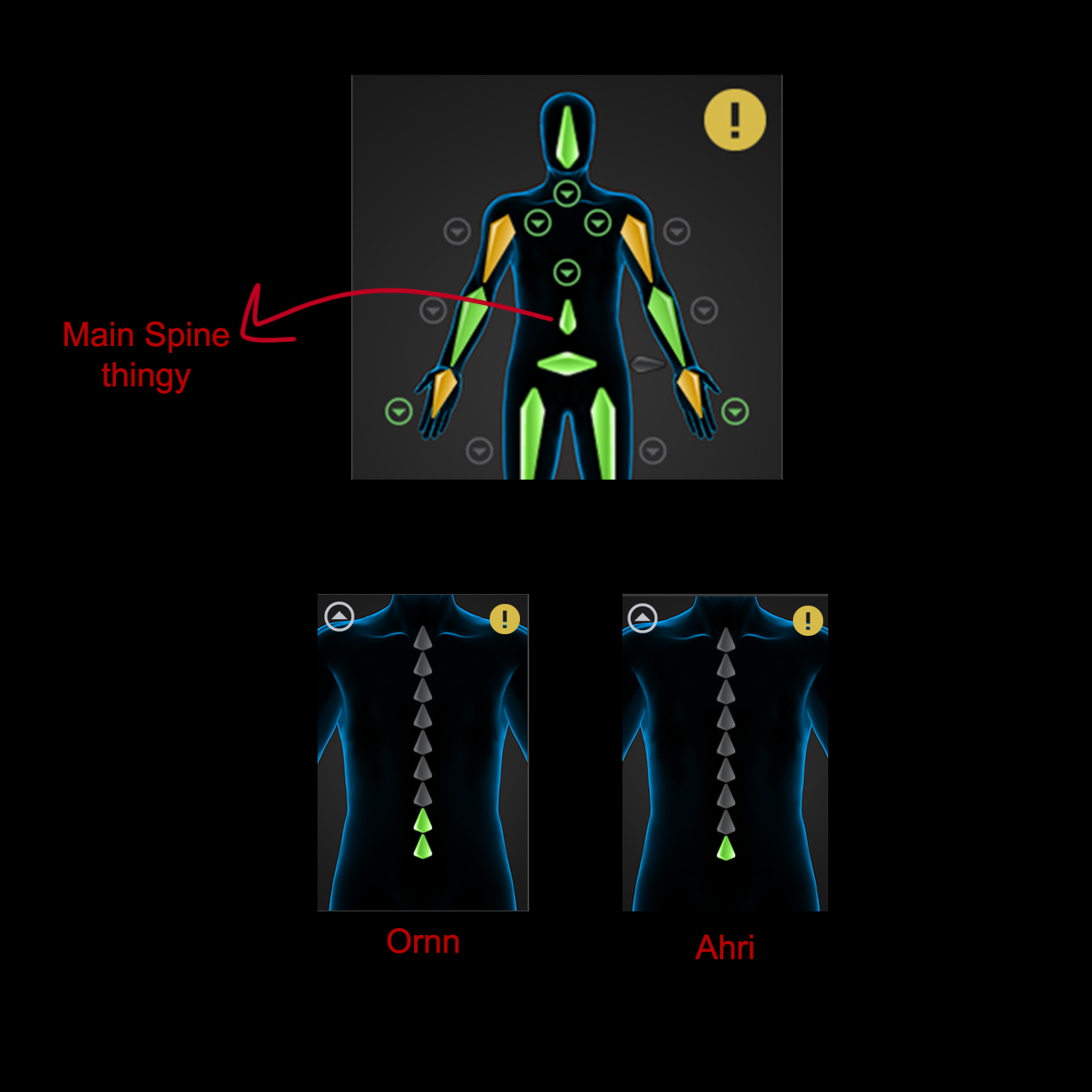
And now, do the same thing again, double click the scary man's bone and then the Main SKL bone. It is important to fill the EXACT SAME THINGS as you did with the Targeted SKL, so same amount of spine bones, same amount of fingers, etc.
If that is not possible (for example, Ornn has one more spine bone than Ahri), you should then assign the main spine bone from the scary man (the one right above the hips) to the first spine, then, in the spine menu, select the rest of them.
The Magic
Once that is done go back above the scary man menu and put "Character 1" in "Characters" and "Character 2" in "Source".
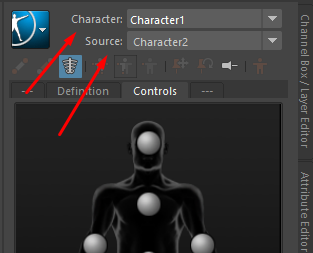
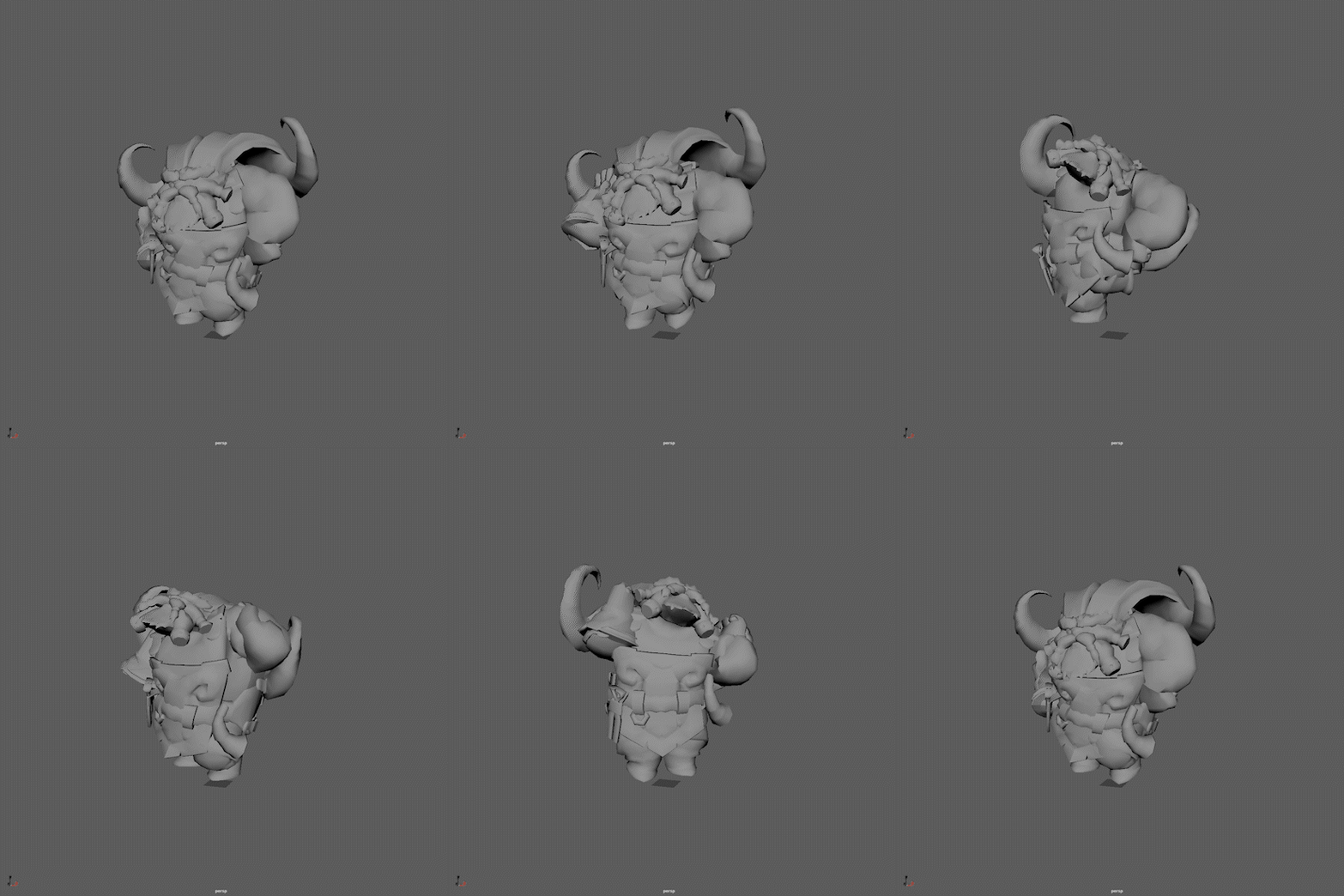
And now see the magic unfold!
Baking and Exporting
Now, the only thing left is baking the animation and export it in game!
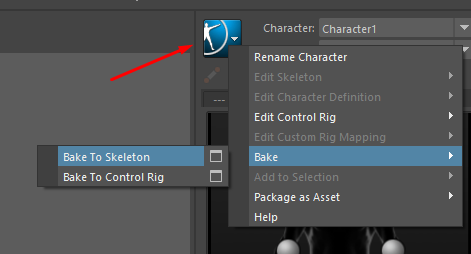
- To bake animation, click the blue square > Bake > Bake to Skeleton.
-
To export the animation follow this guide here:
And done!
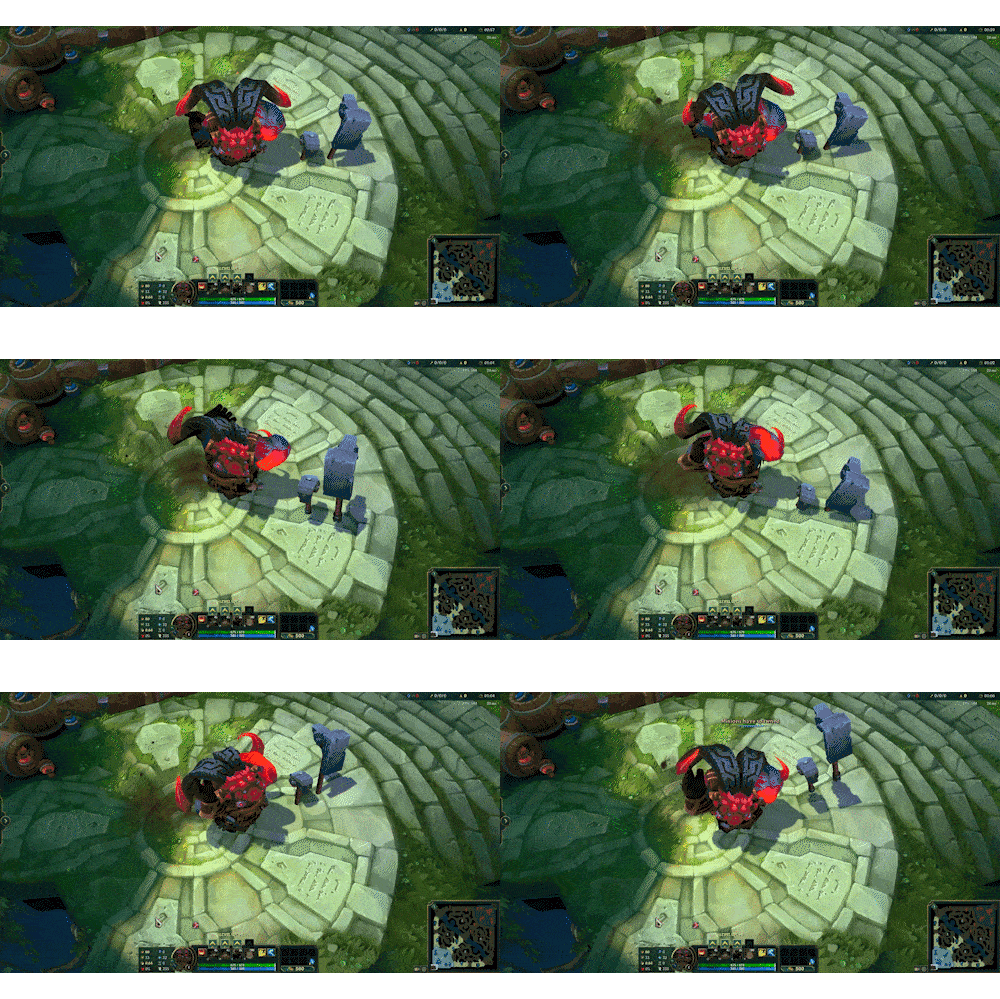
Guide by Goat <3